This guide shows you everything you need to do on the Surgical DRC site: how to log in, review the protocols assigned to you, and (for executives) manage protocols and meetings. Each step has a picture with the buttons circled, so you can follow it the first time.
1. Getting started — logging in
Everyone logs in the same way. You only do the first-time steps once; after that, signing in takes seconds.
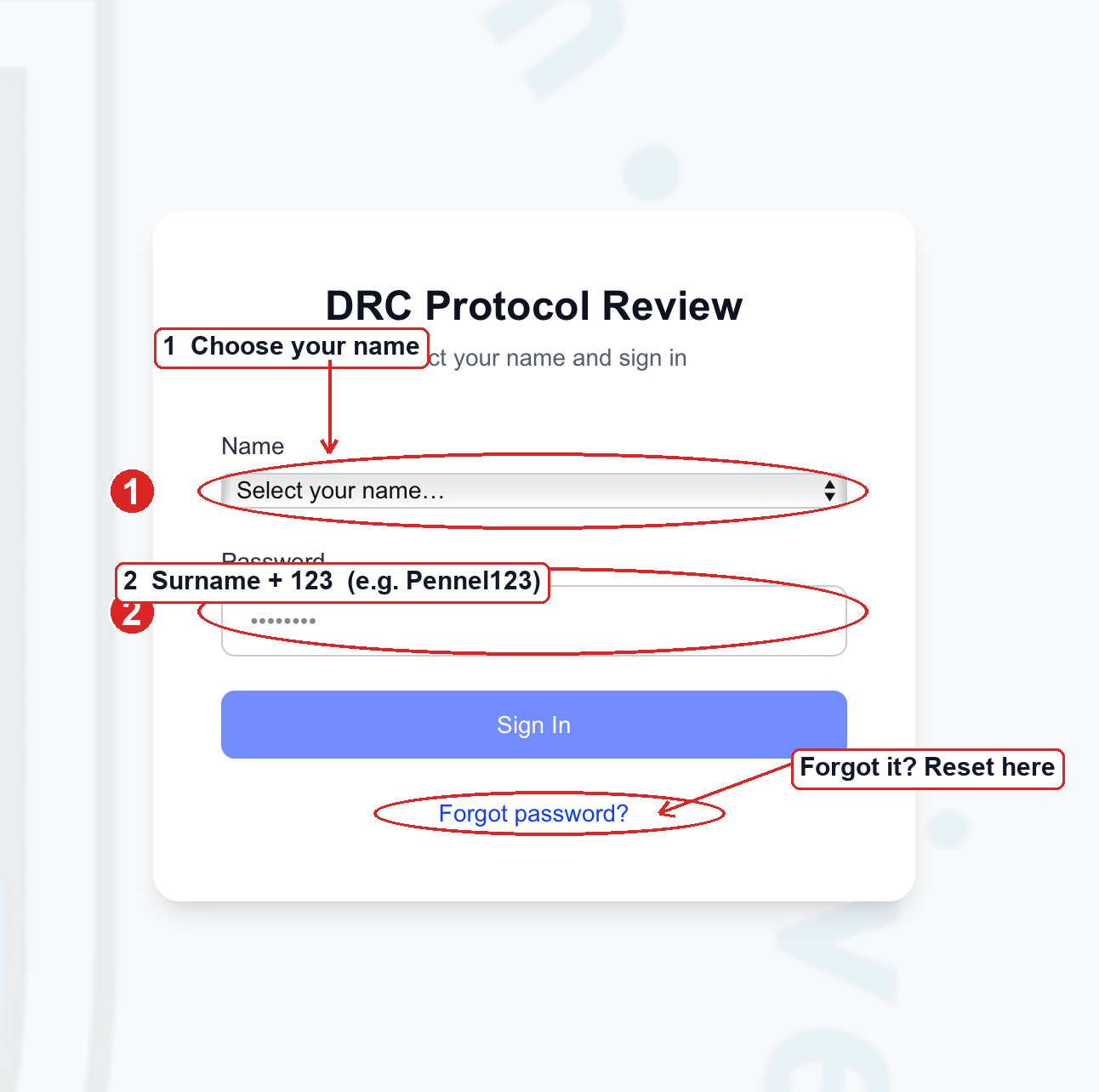
- 1Open the site & choose your nameGo to surgicaldrc.co.za/login and pick your name from the Name dropdown. You don't create an account — your name is already in the system.
- 2Enter your passwordYour starting password is your surname with a capital first letter, then 123. For example, Tim Pennel →
Pennel123. - 3Set your own password (first time only)The very first time you sign in, the site asks you to choose a new, private password before you can continue. Pick something only you know.
2. Reviewing your protocols
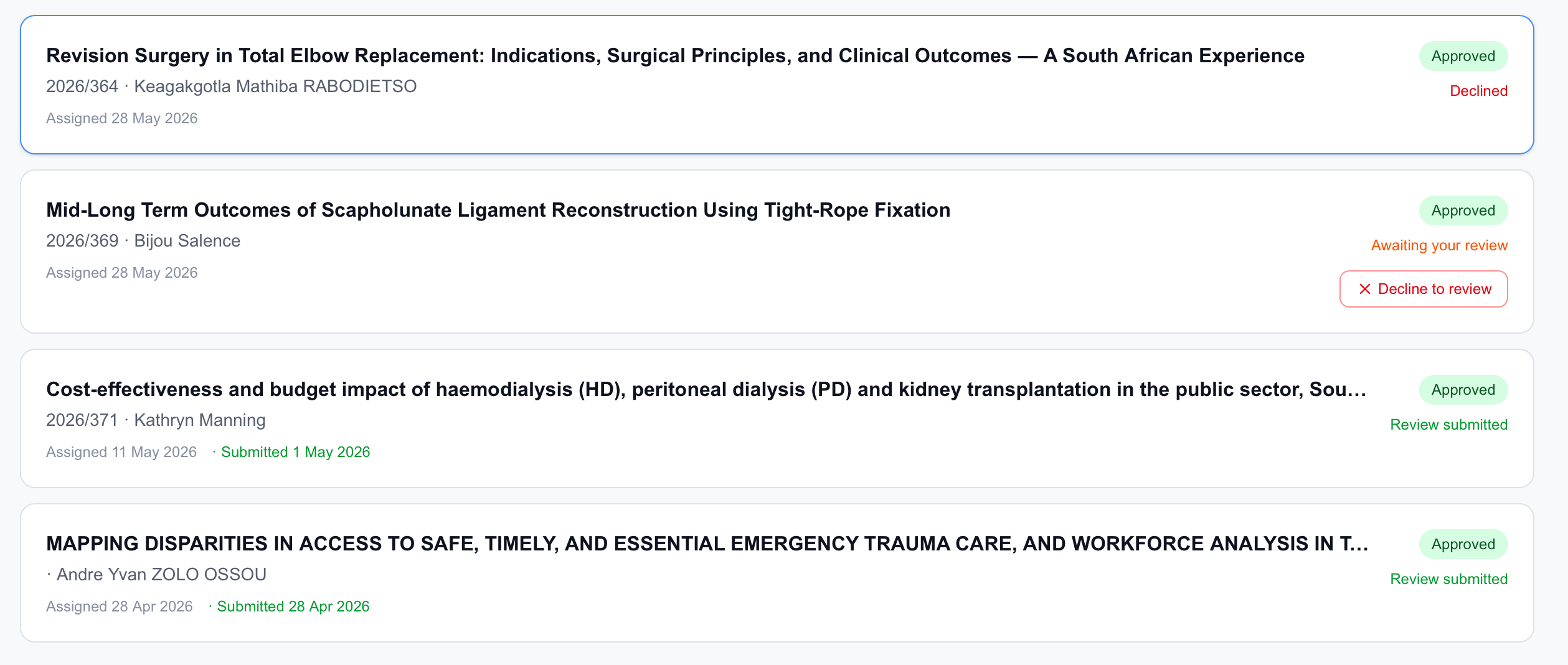
When you sign in, you land on My Assigned Protocols — every protocol the committee has assigned to you. For each one, you either submit a review or decline it.
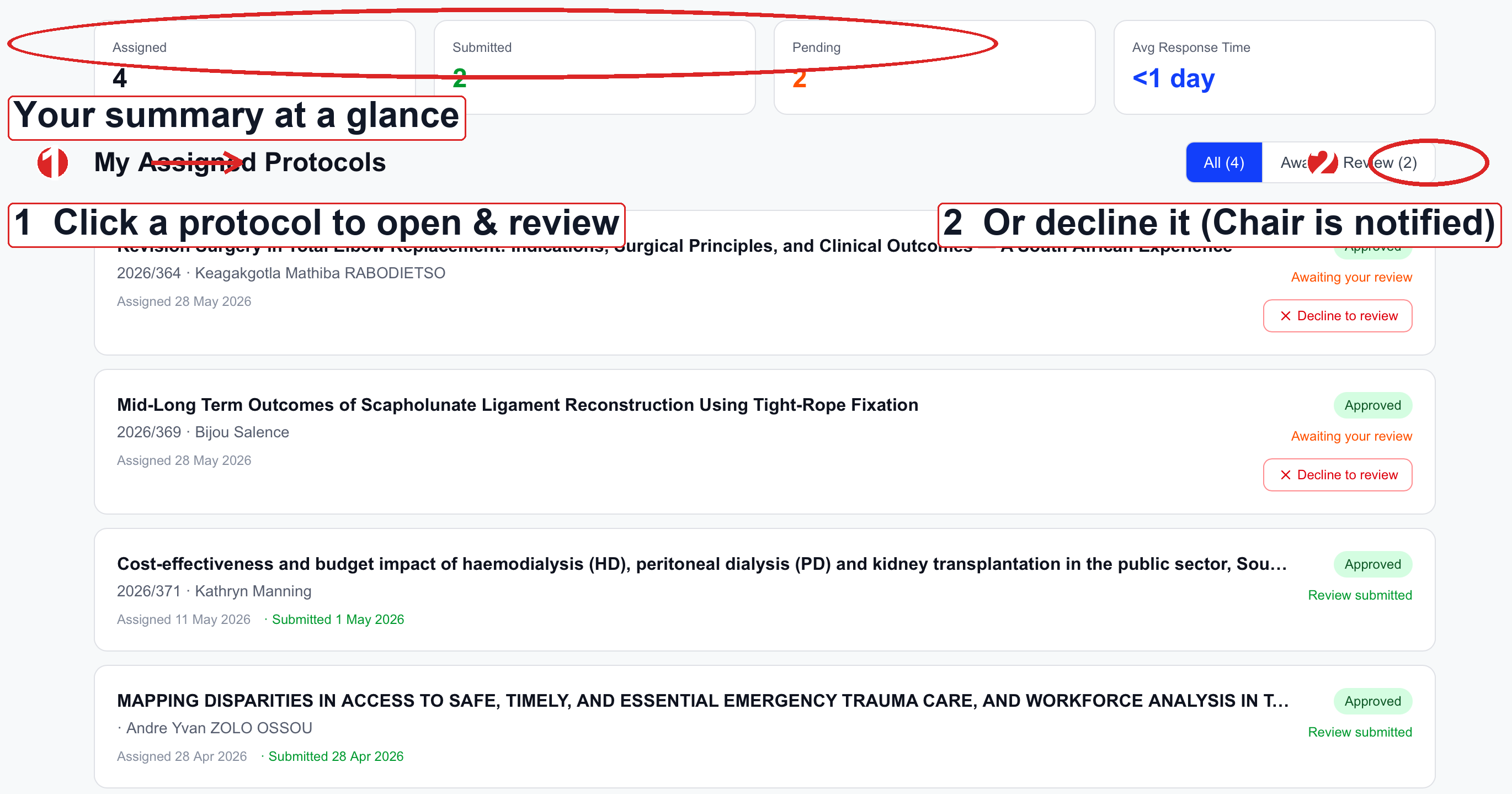
Understanding the status of each protocol
| What you see | What it means |
|---|---|
| Awaiting your review | Still waiting for you to review it. |
| Review submitted | You've already submitted your review. |
| Declined | You declined; the Chair was notified. |
To review a protocol
- 1Open itClick the protocol in your list to open its full details.
- 2Read it & download the documentsOpen the documents in the Submitted Documents section and read the protocol and data sheet before deciding.
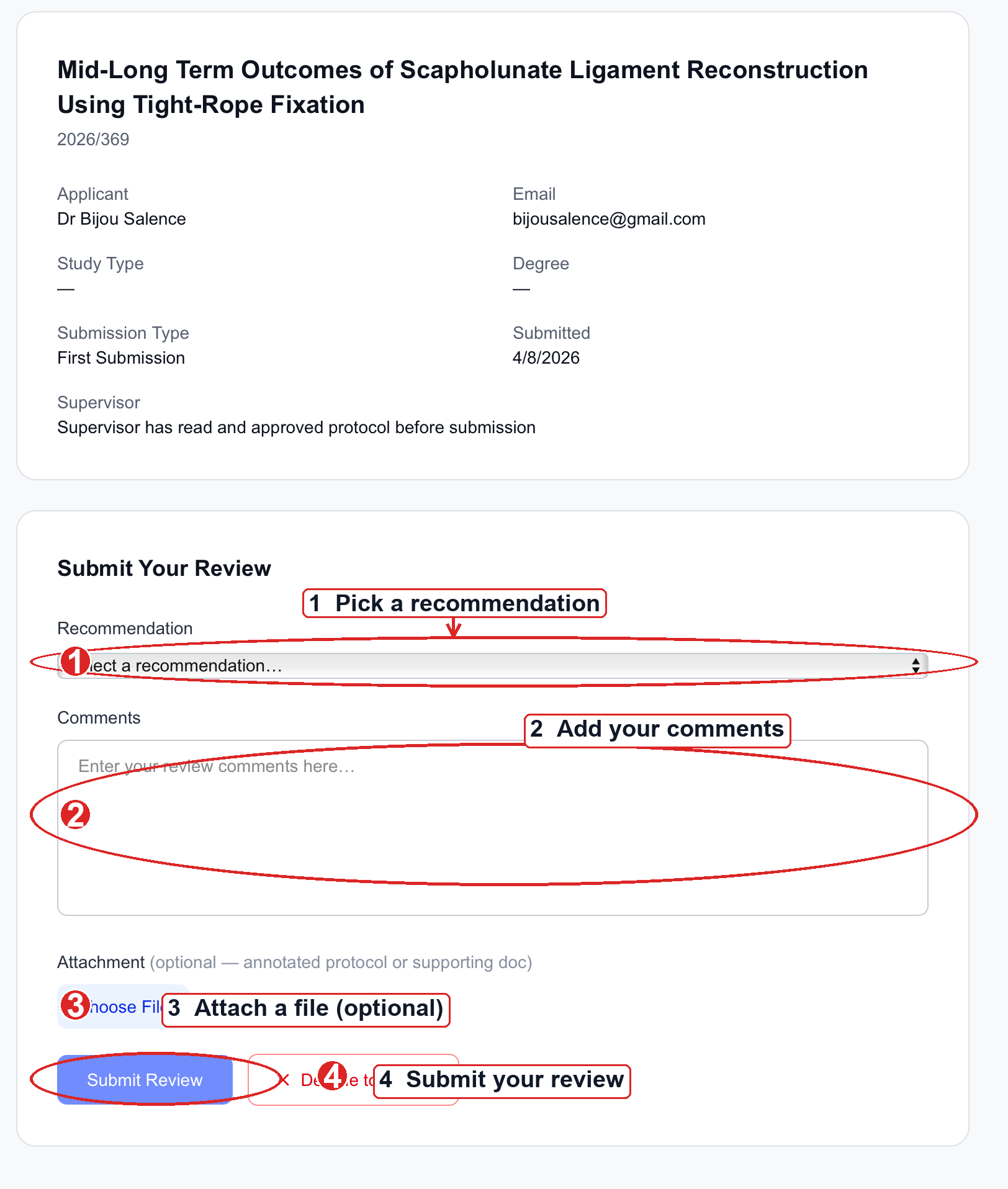
- 3Choose your recommendationPick one from the dropdown: Approved, Minor Amendment, Major Amendment, or Rejected.
- 4Add comments (and a file if needed)Type your feedback — be specific, as it guides the applicant. You can also attach a marked-up file, but that's optional.
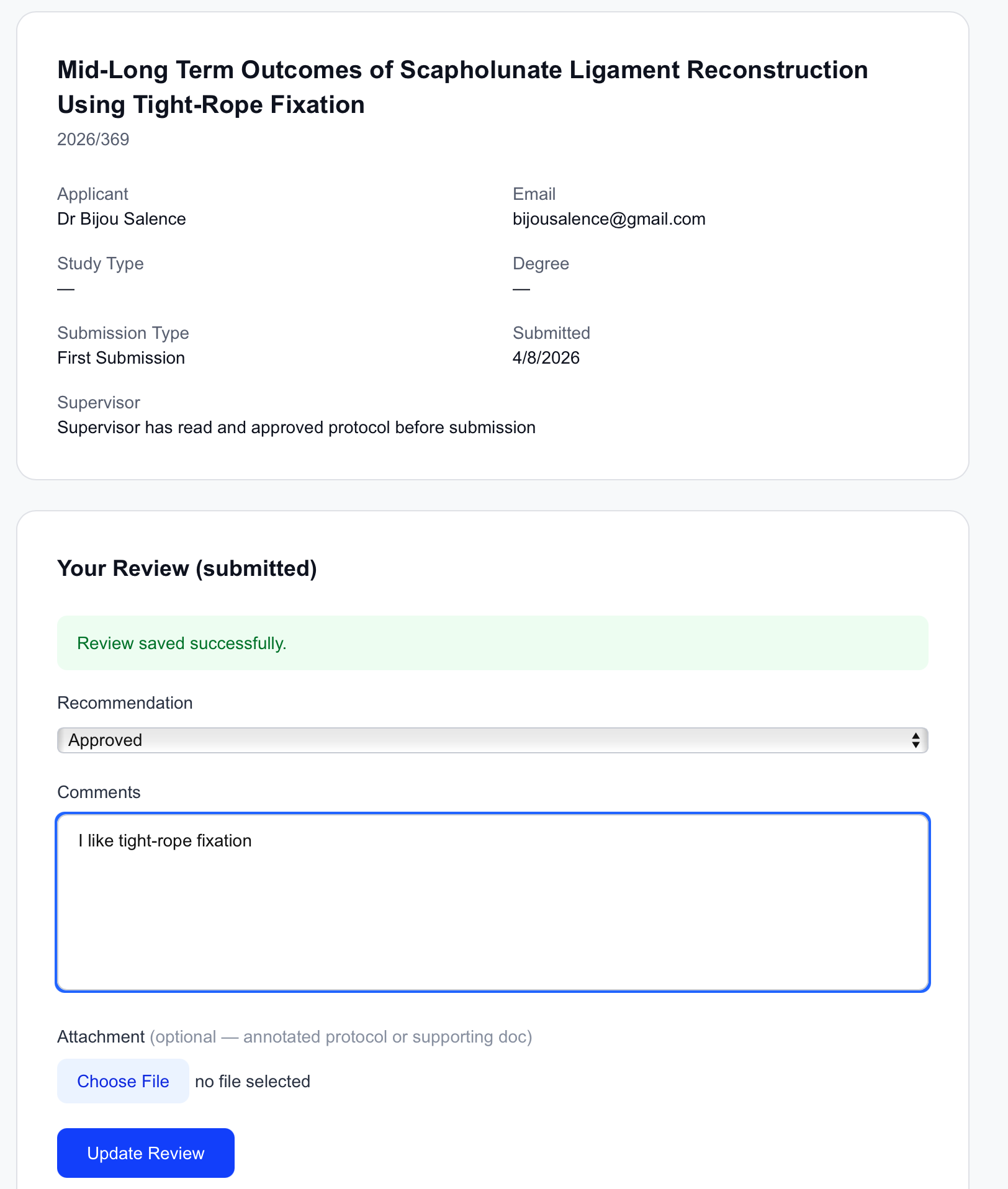
- 5SubmitClick Submit Review. The protocol's status changes to show your recommendation.
If you can't review a protocol — decline it
If you have a conflict of interest or can't review in time, hand it back to the Chair.
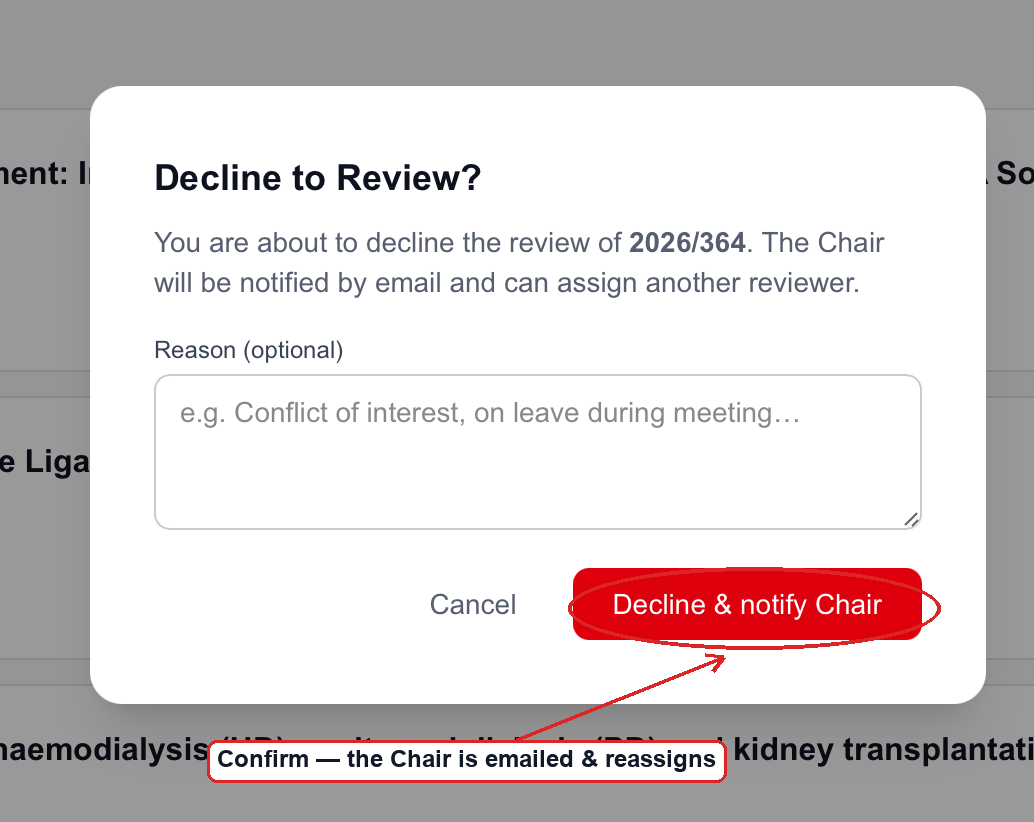
- 1Click “Decline to review” on the protocolA dialog opens.
- 2Give a brief reason (optional) and confirmClick Decline & notify Chair. The Chair is emailed automatically and reassigns it — you don't need to contact anyone.
3. For Executives & the Chair
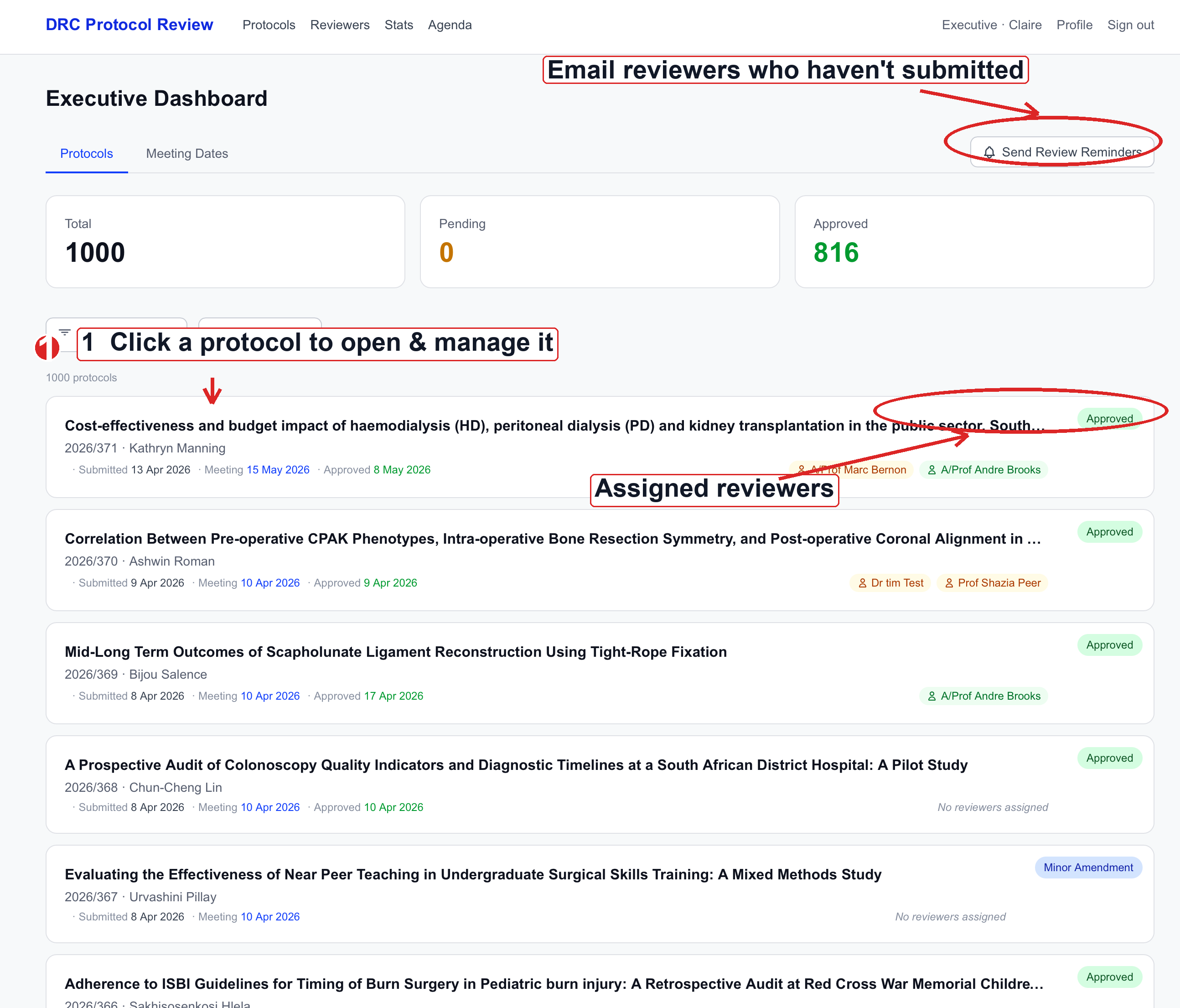
Executives see everything. The top menu has Protocols, Reviewers, Stats, Agenda, and Import (the Chair/admin also sees Executives).
Managing a protocol
Click any protocol to open it, then you can:
- 1Assign reviewersChoose up to three reviewers. Newly-assigned reviewers are emailed automatically.
- 2Set the meeting dateAssign it to a committee meeting date.
- 3Record the outcome & generate the letterRecord the final outcome and generate the matching letter (Approval, Minor/Major Amendment, or Fast-Track).
- 4Email the applicantClick Send … Email to Applicant to send the outcome letter from the system.
The other menus
- Send Review Reminders (on the dashboard) — nudges reviewers who haven't submitted.
- Agenda — builds a meeting agenda and emails it (with the PDF attached) to applicants and reviewers.
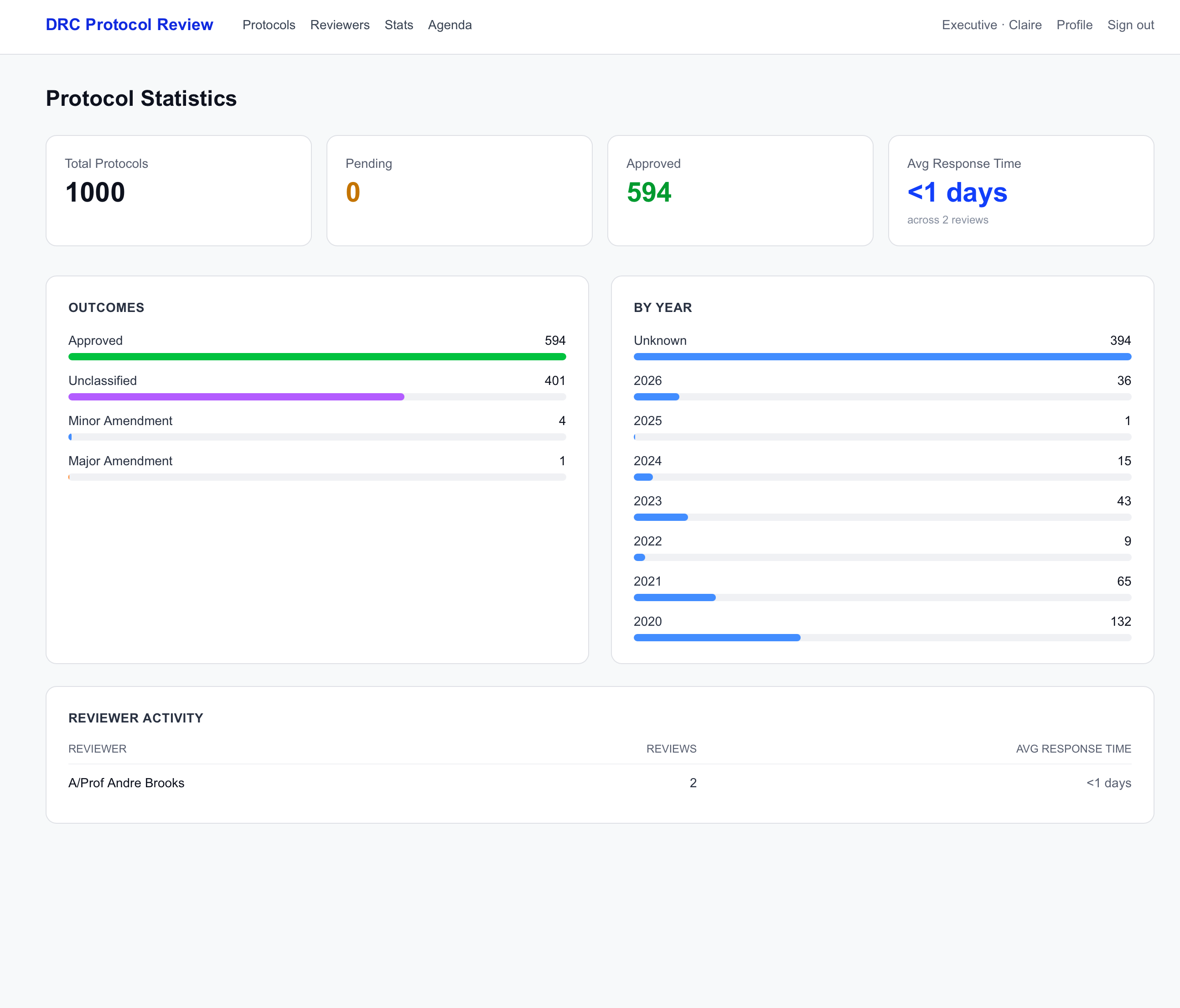
- Stats — totals, average response time, outcomes, protocols by year, and reviewer activity.
- Import — drag & drop old protocol-submission emails (.eml files) straight into the system.
4. Updating your details & password
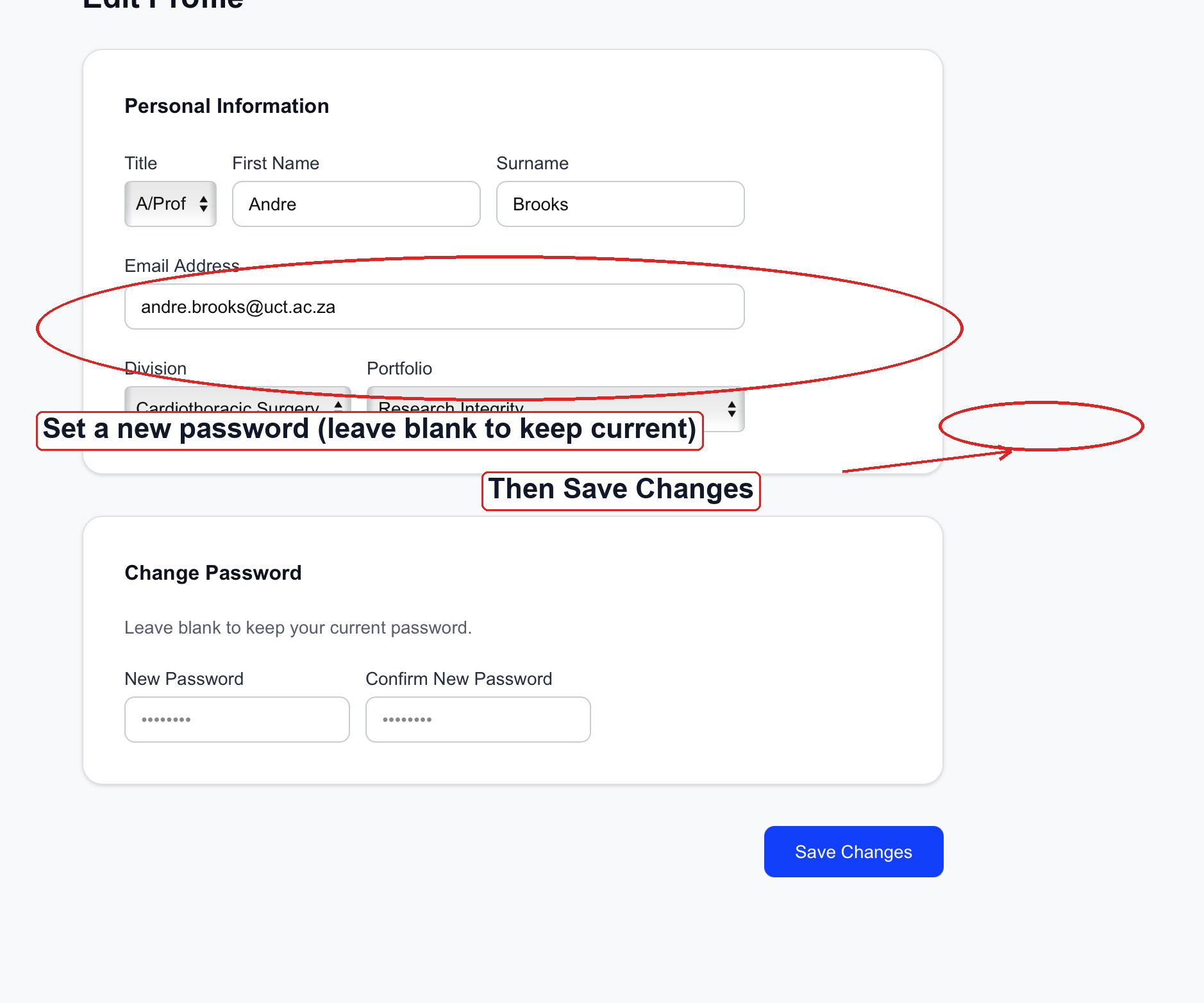
Click Profile (top right) any time to update your title, name, email, division, and portfolio — or to change your password.
5. About the emails you'll receive
The system emails you about submission confirmations, review reminders, reviewer assignments, and meeting agendas.
6. Common questions & troubleshooting
I can't log in.
Check you've selected the correct name and that your password is your surname with a capital first letter + 123 (e.g. Pennel123) — or the new password you set. Still stuck? Use "Forgot password?" or contact Tim.
The site asked me to change my password — is that normal?
Yes — that happens automatically on your first login. Choose a private password and continue.
I declined a protocol by mistake.
No problem — contact the Chair or Tim and it can be reassigned to you.
Can I use this on my phone?
Yes — the site works in any phone or tablet browser.
📧 tim.pennel@uct.ac.za · 💬 WhatsApp 083 233 5518